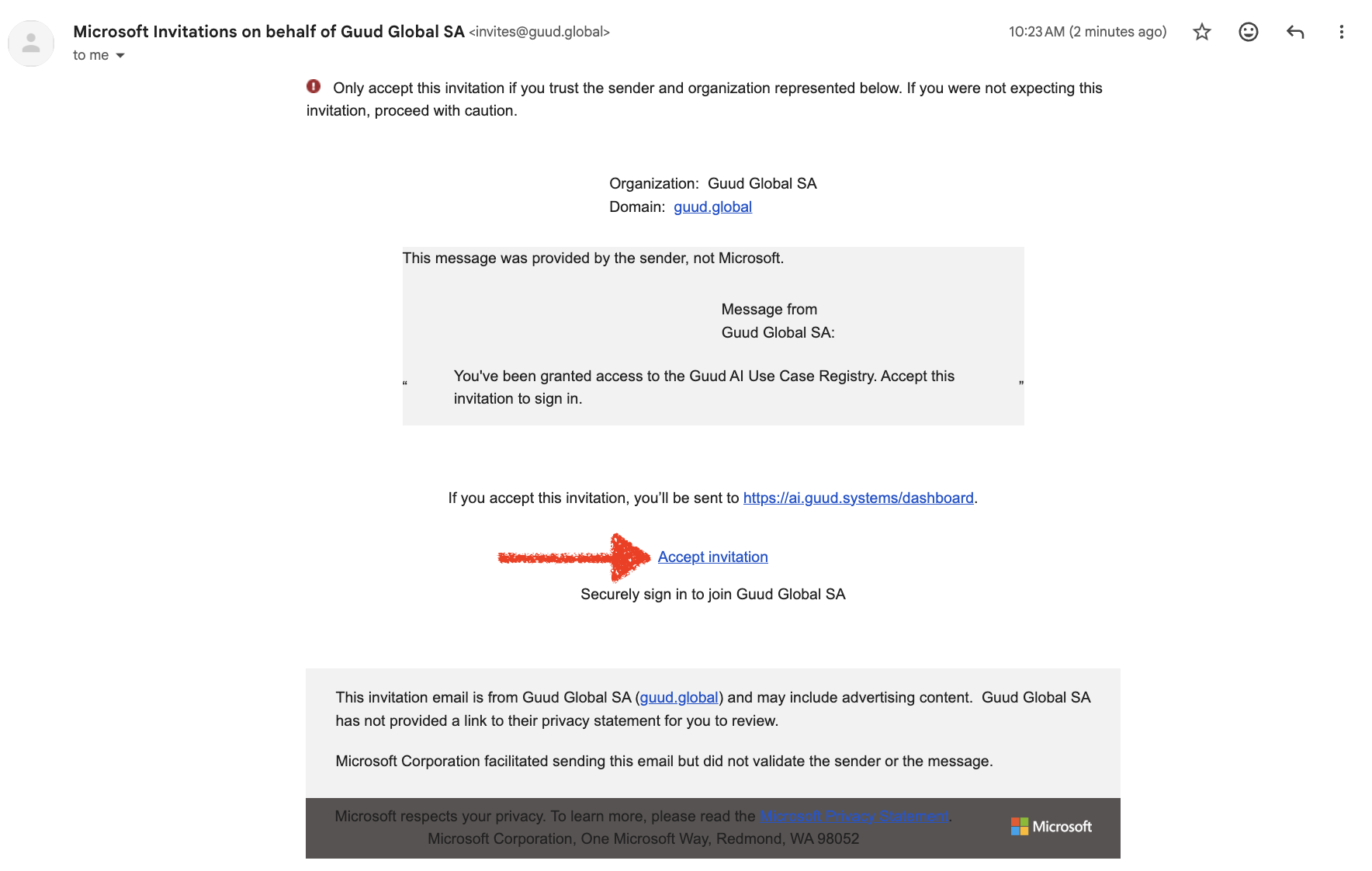
Getting signed in — 4 steps
How to activate your access to the Guud AI Use Case Registry
Guud uses Microsoft to verify identity. When you request access, you'll receive an official invitation email from Microsoft on behalf of Guud Global SA.
The email will look formal and may show a Microsoft security notice. This is expected and completely safe to accept.
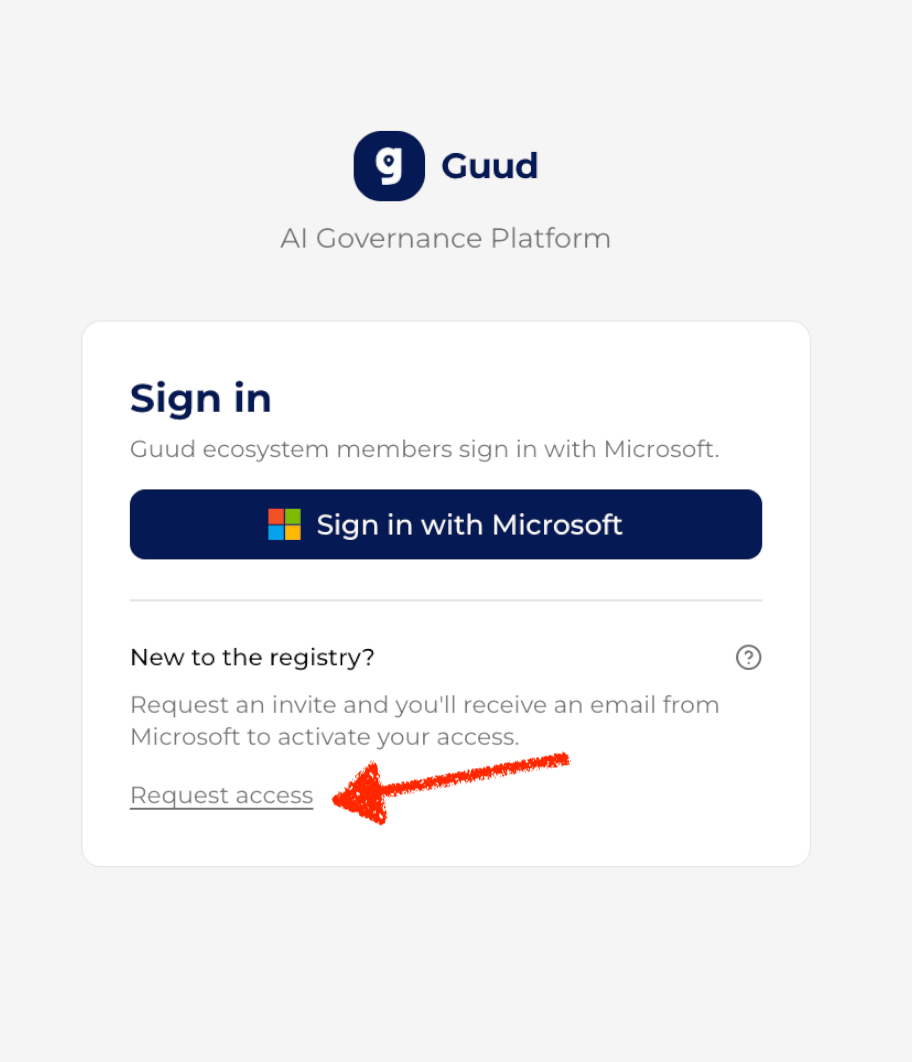
Go to ai.guud.systems. Under "New to the registry?", click Request access to open the invite form.
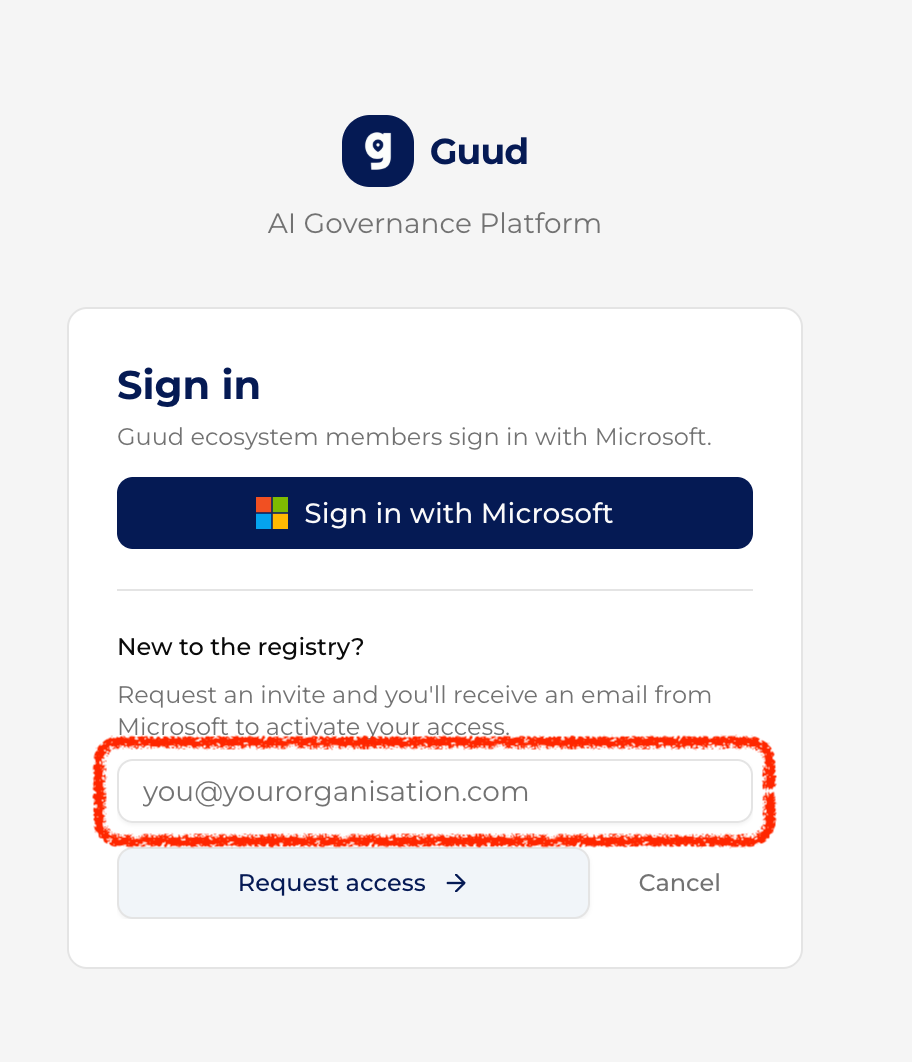
Type your work email address into the field that appears, then click Request access →. Your invite is sent automatically.
An email from Microsoft Invitations on behalf of Guud Global SA will arrive. Not there? Check spam or junk and search for invites@guud.global.
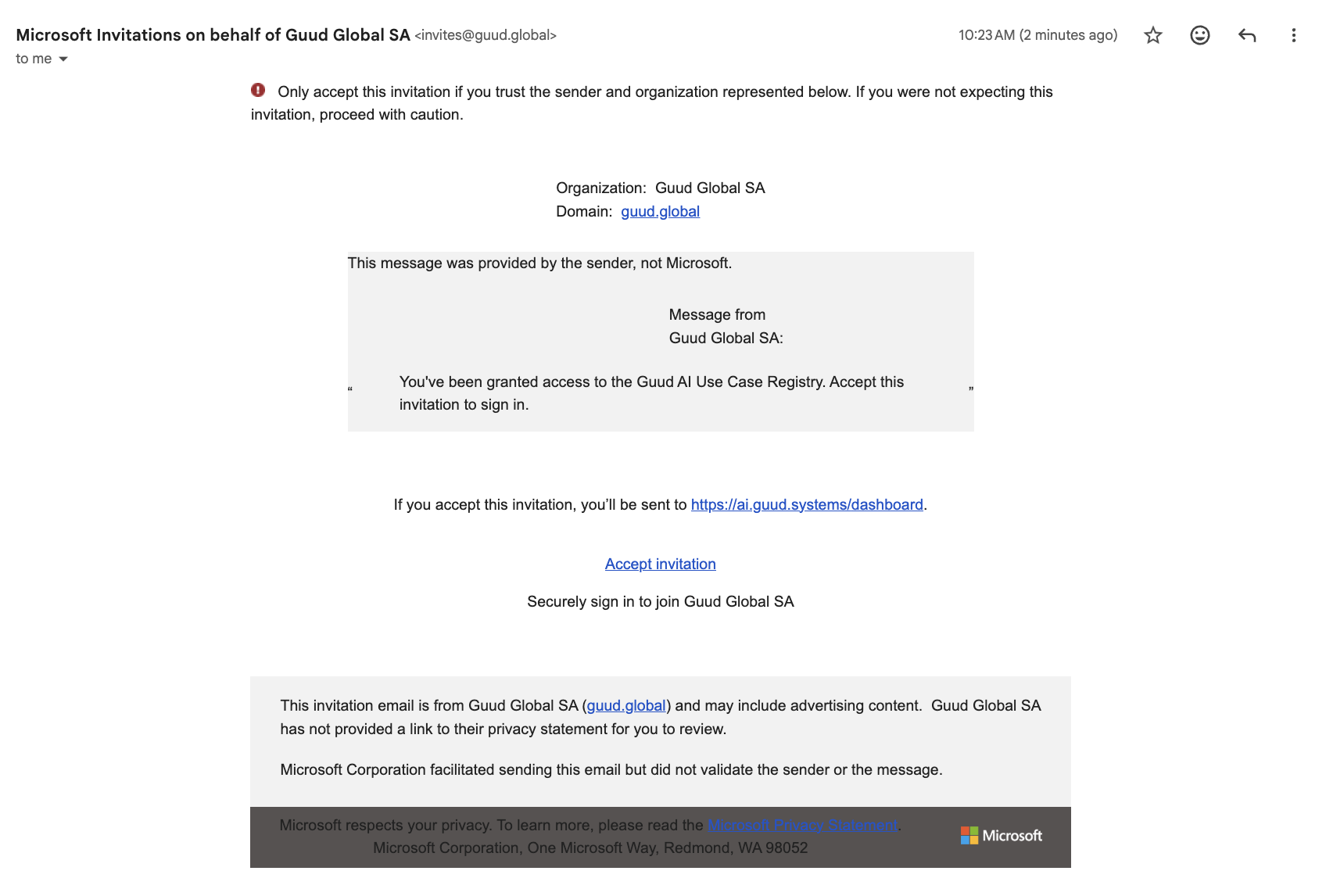
Scroll down in the email and click Accept invitation. Microsoft will ask you to review and grant permissions for Guud — click Accept. If you're not already signed in to Microsoft, you'll be prompted to log in with your work account first. Once done, you'll land straight at ai.guud.systems/dashboard — you're in.